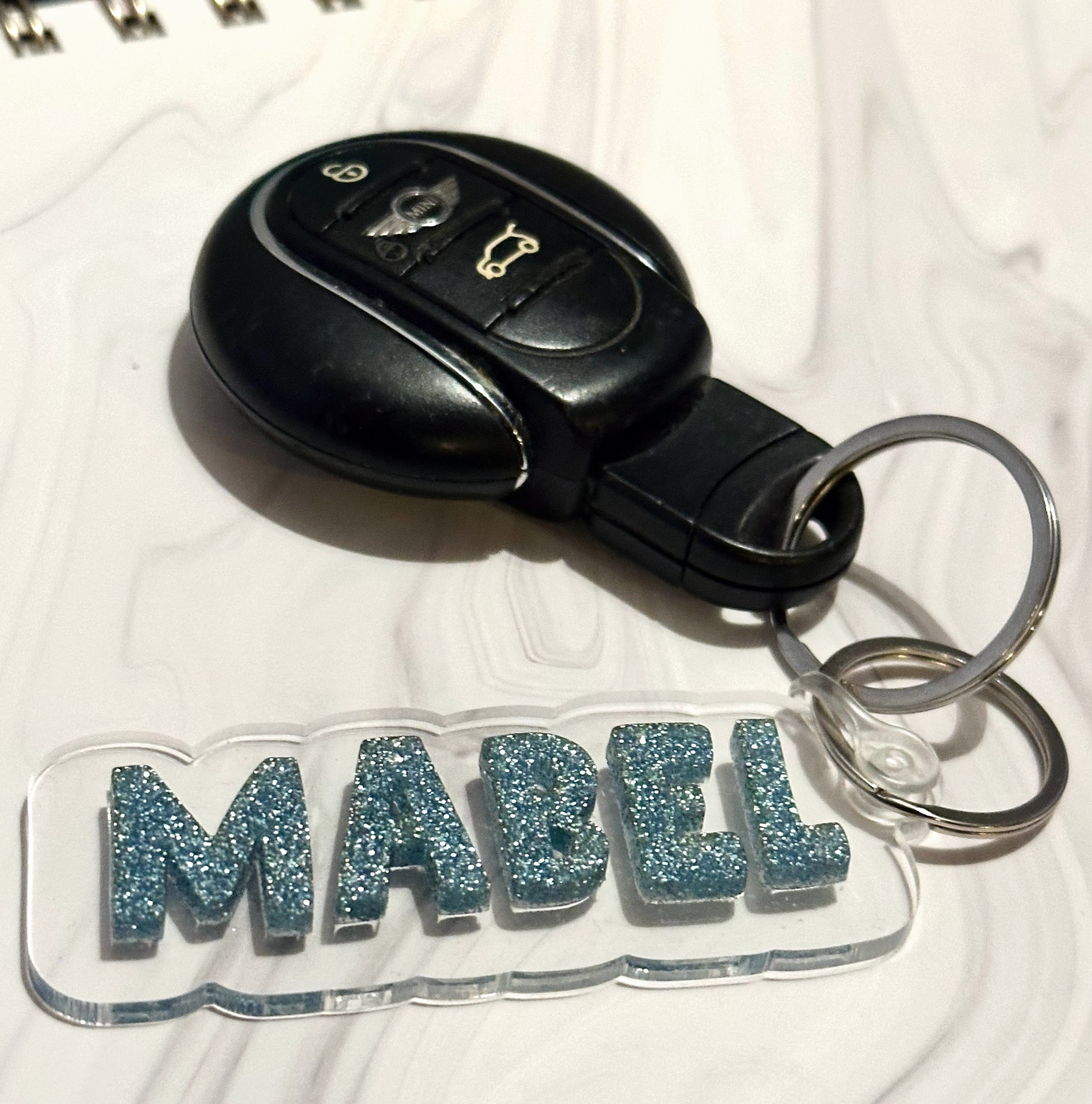
- Feb 6, 2024
Learn How to Design with Samantha: Layered Name Keychains in Inkscape
- Samantha Ludwitzke
- 0 comments
I've seen a few posts in forums I'm in where makers are asking how to make name keychains, so I wanted to make a post on how to design them using a few of the more popular design programs. I did a video on Adobe Illustrator, but I know not everyone uses that program, so I wanted to go over some other options as well by creating some tutorial posts for you.
Materials:
1/8 acrylic in two different colors - I am partial to Craft Closet, Cerulean Tides, Houston Acrylic, Custom Made Better, or Smokey Hill Designs.
Keychain thingie connector piece
Split ring
Adhesive - I use either double sided adhesive tape or All Craft glue from CT
Your laser
-
Design program of your choice. Here are the links for Lightburn, Silhouette Studio, and Adobe Illustrator.
Below, I've broken out the instructions for Inkscape.
Here's how to create your own using Inkscape
(The default Inkscape keyboard shortcut guide can be found here!)
-
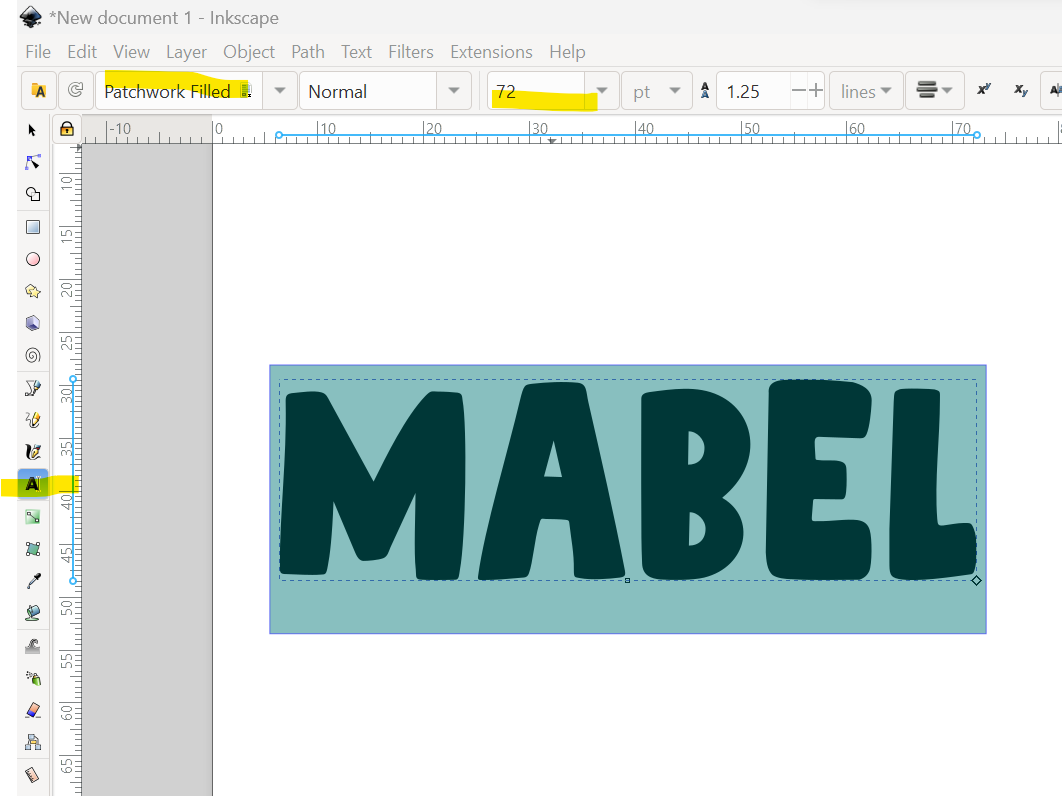
Type text and choose font. I used Patchwork from Creative Fabrica. (This is an affiliate link and I may earn a small commission if you purchase from it.) I recommend making your keychain around 3 inches in length. When making your text, keep this in mind that you will be adding about an inch of offset around it.
-
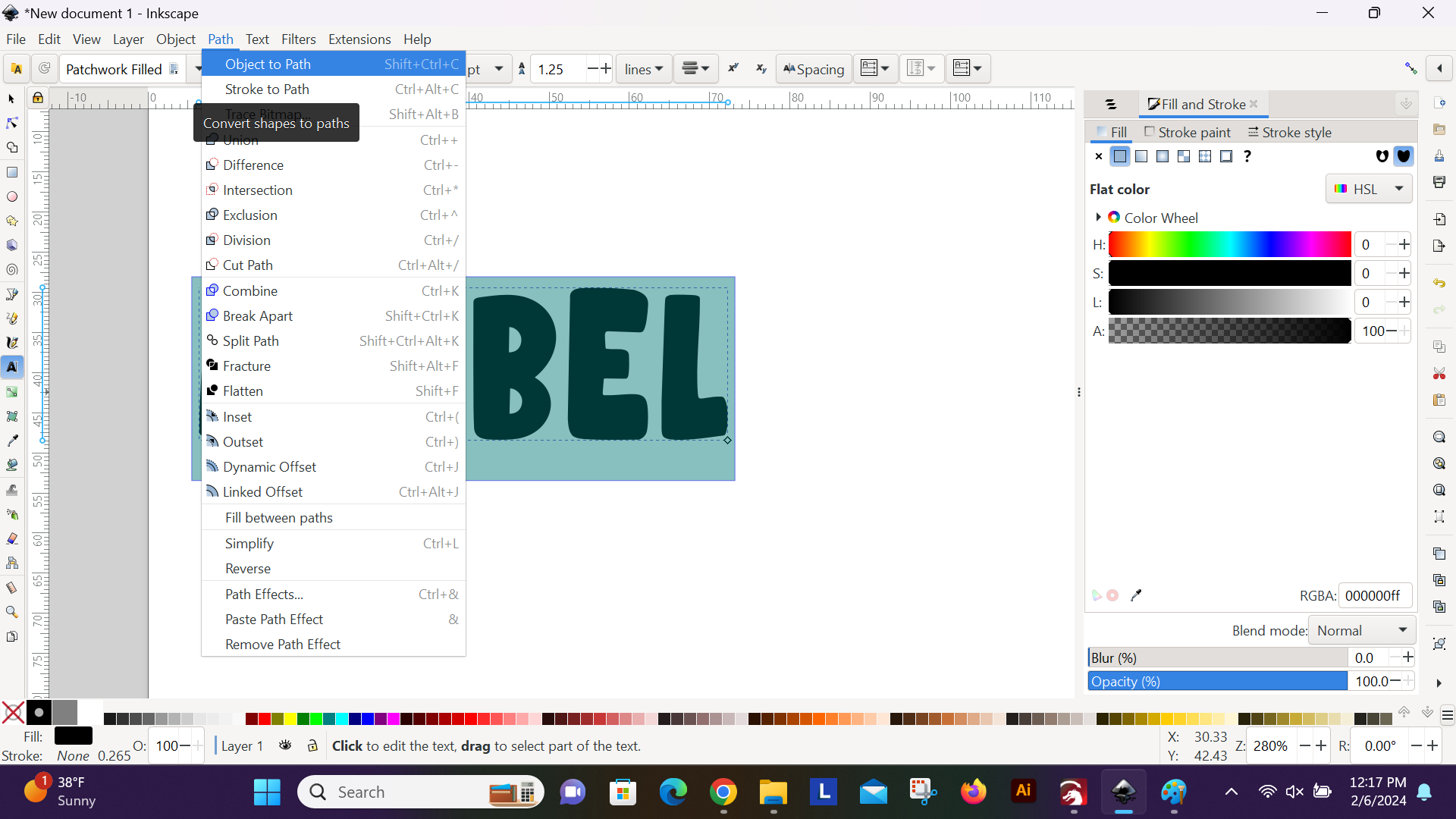
Convert to path by selecting the "Path" dropdown menu and choosing "Object to Path." You can also use the keyboard shortcut, CTRL + SHIFT + C (Windows) or CMD + SHIFT + C (Mac).
-
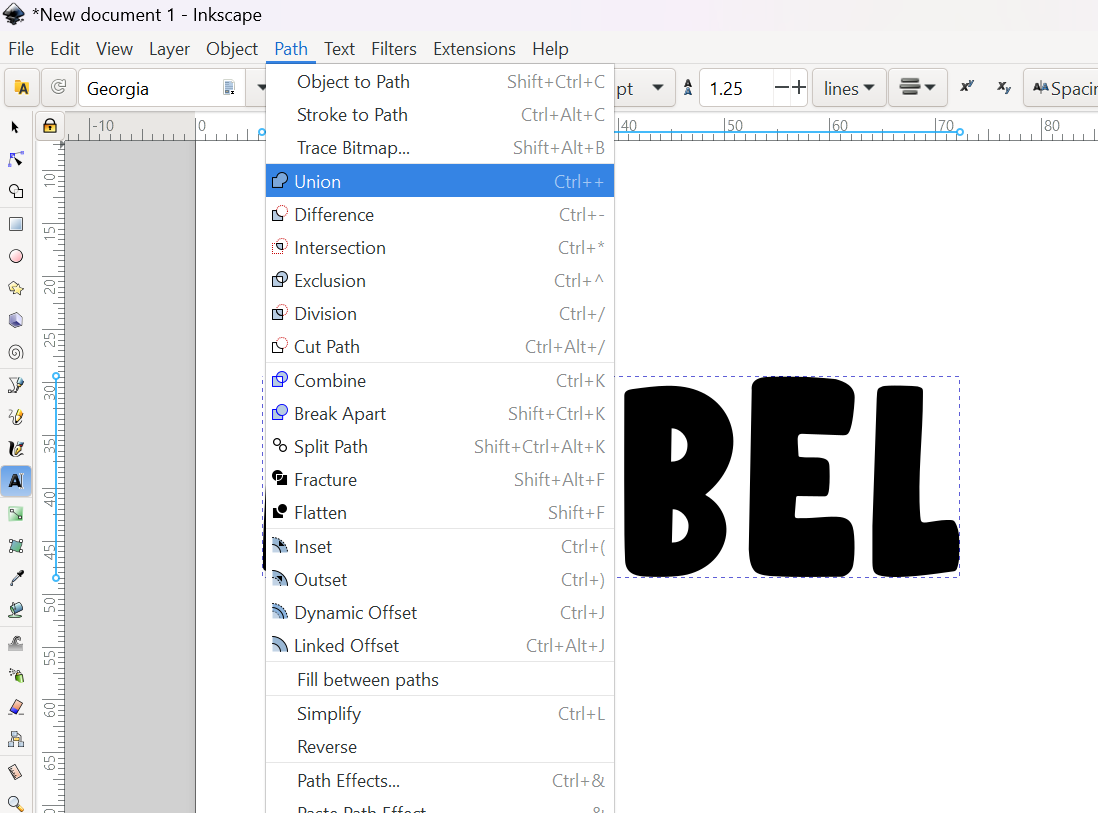
With your text still selected, perform the "Union" function. You can do this by selecting "Union" from the "Path" dropdown menu or by using keyboard shortcut CTRL + + (Windows) or CMD + + (Mac).
-
Copy and Paste your text twice by either right clicking and selecting "Copy" and "Paste" or using the keyboard shortcuts CTRL + C and CTRL + V (Windows) or CMD + C and CMD + V (Mac). You can also use the "Duplicate" option, or CTRL + D (Windows) or CMD + D (Mac). Move this text away from the original so you have it to work on.
Create your 2 offsets by following the below instructions. One will be for the interior offset (aka inset) to help with scoring placement, and one will be your contour cut backer piece for the base of the keychain.
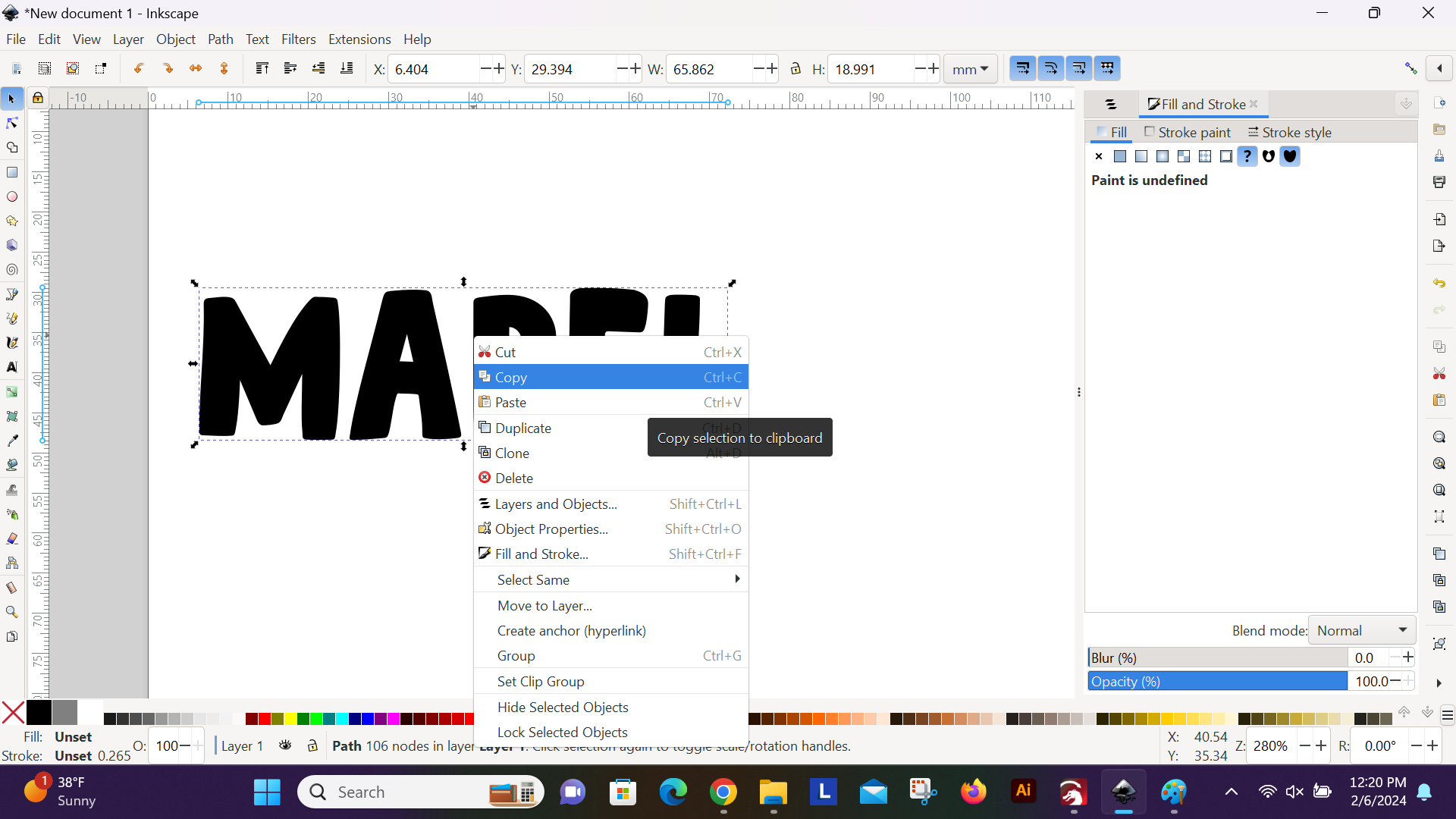
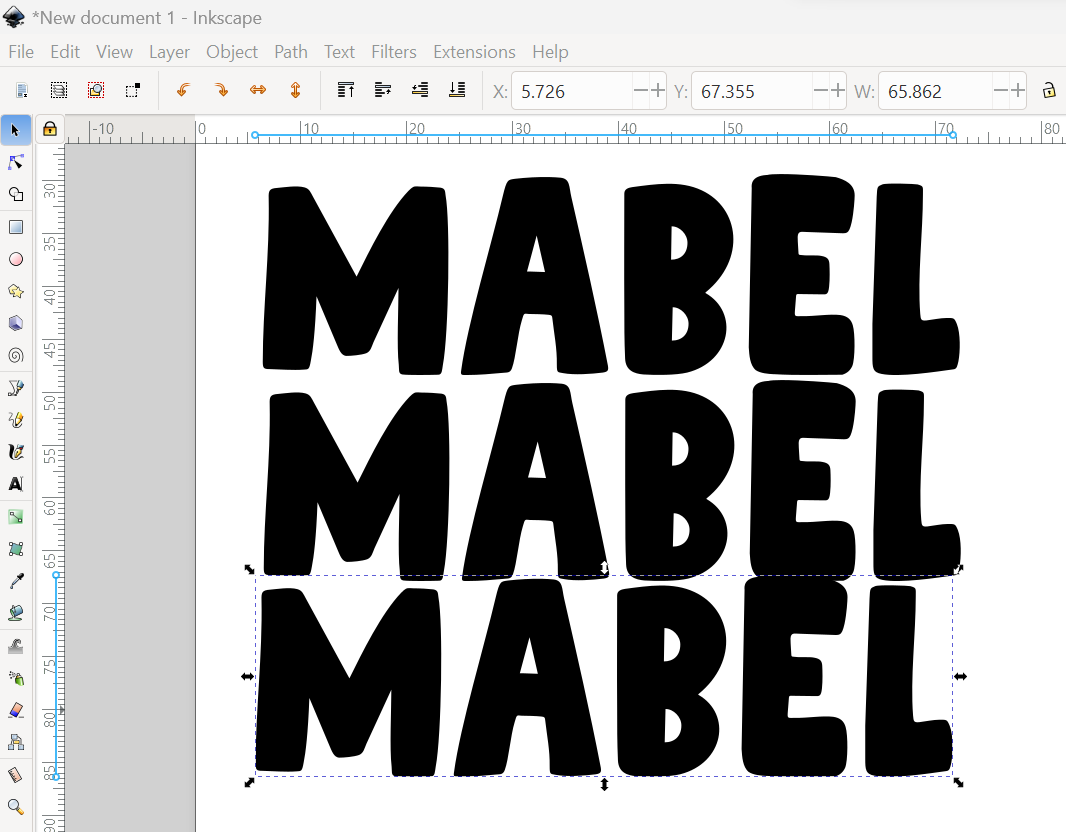
Click on the first duplicated text.
-
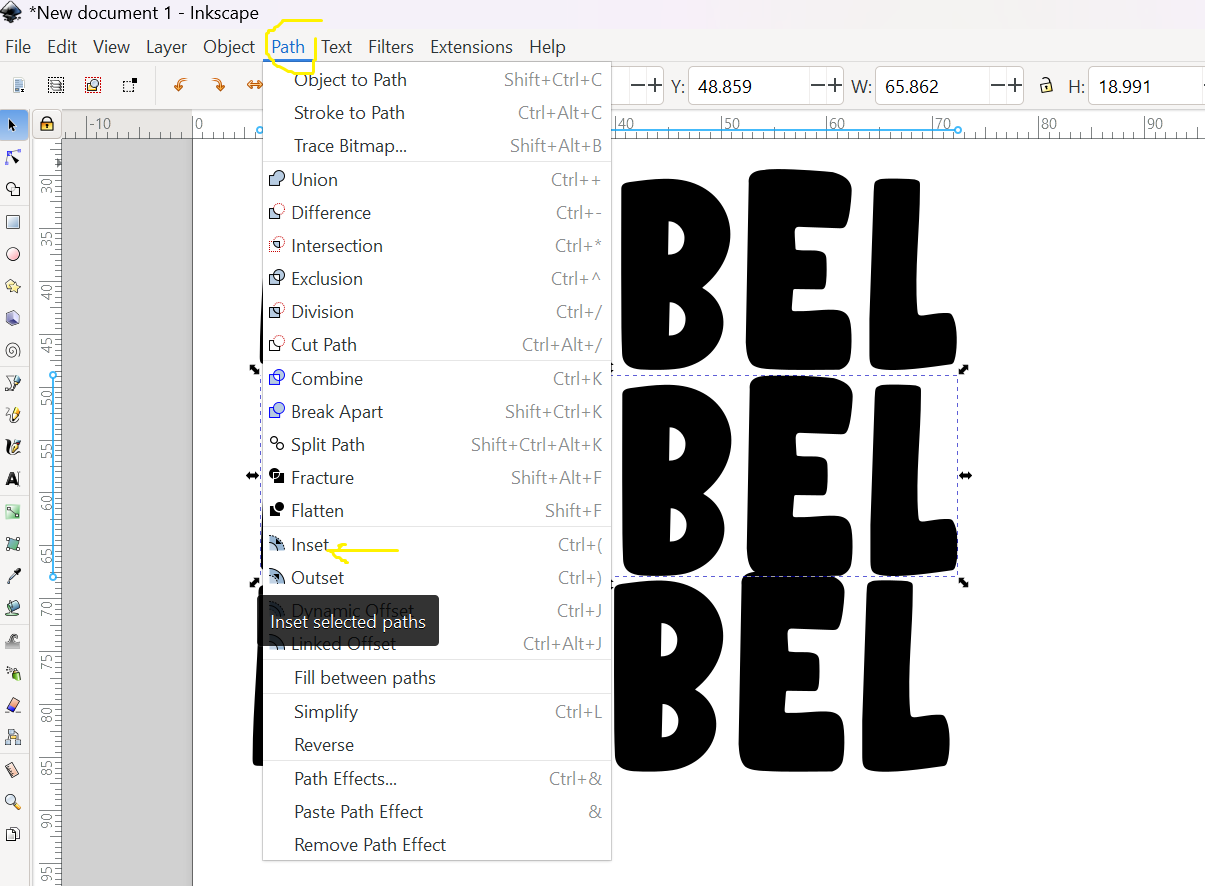
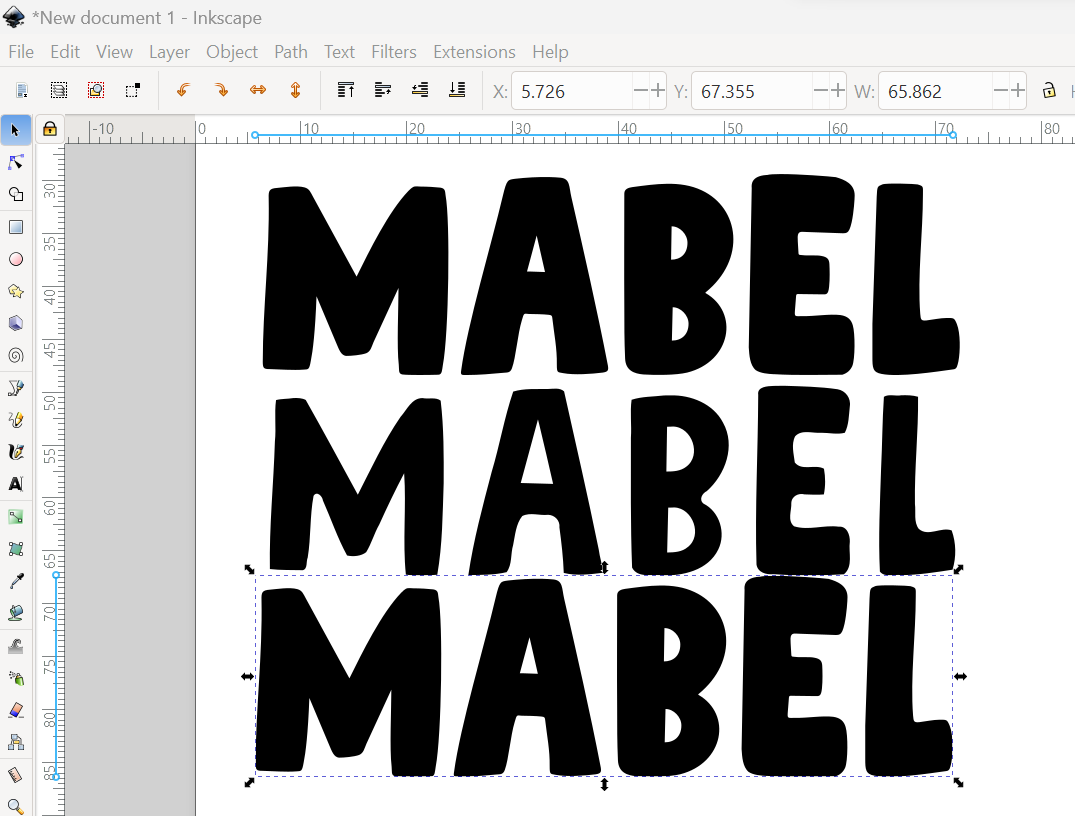
Click on the "Path" menu and select "Inset." Repeat 3-4 times until it is inset as much as you like. This will be for scoring placement. You can also use keyboard shortcut CTRL + ( (Windows) or CMD + ( (Mac) to perform the inset function.
-
Click on the second duplicated text.
-
With this selected, go back to your "Path" menu and select "Outset," or use keyboard shortcut CTRL + ) (Windows) or CMD + ) (Mac). Repeat until you are at your desired thickness. You can hold down the keyboard shortcut to make it go faster.
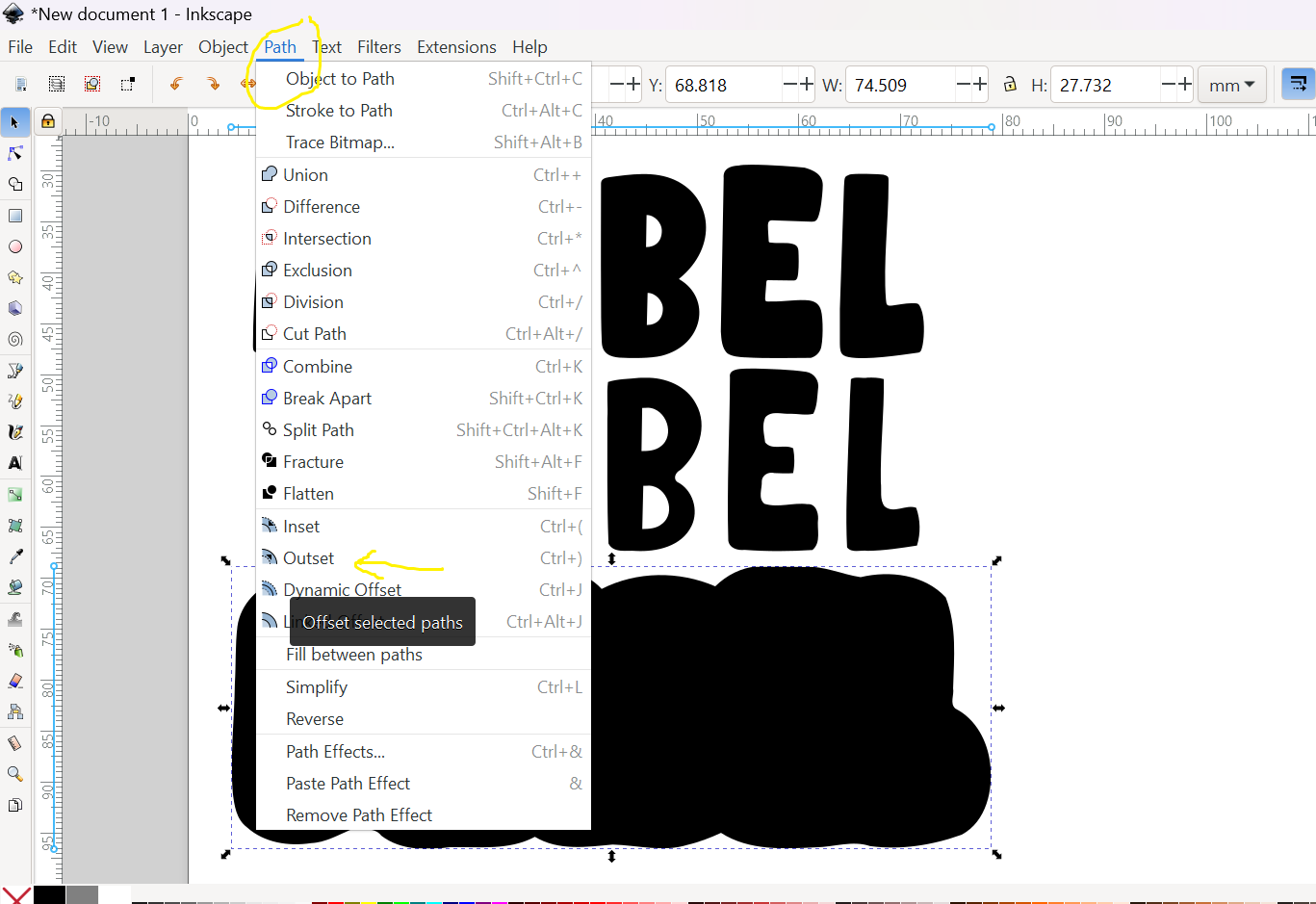
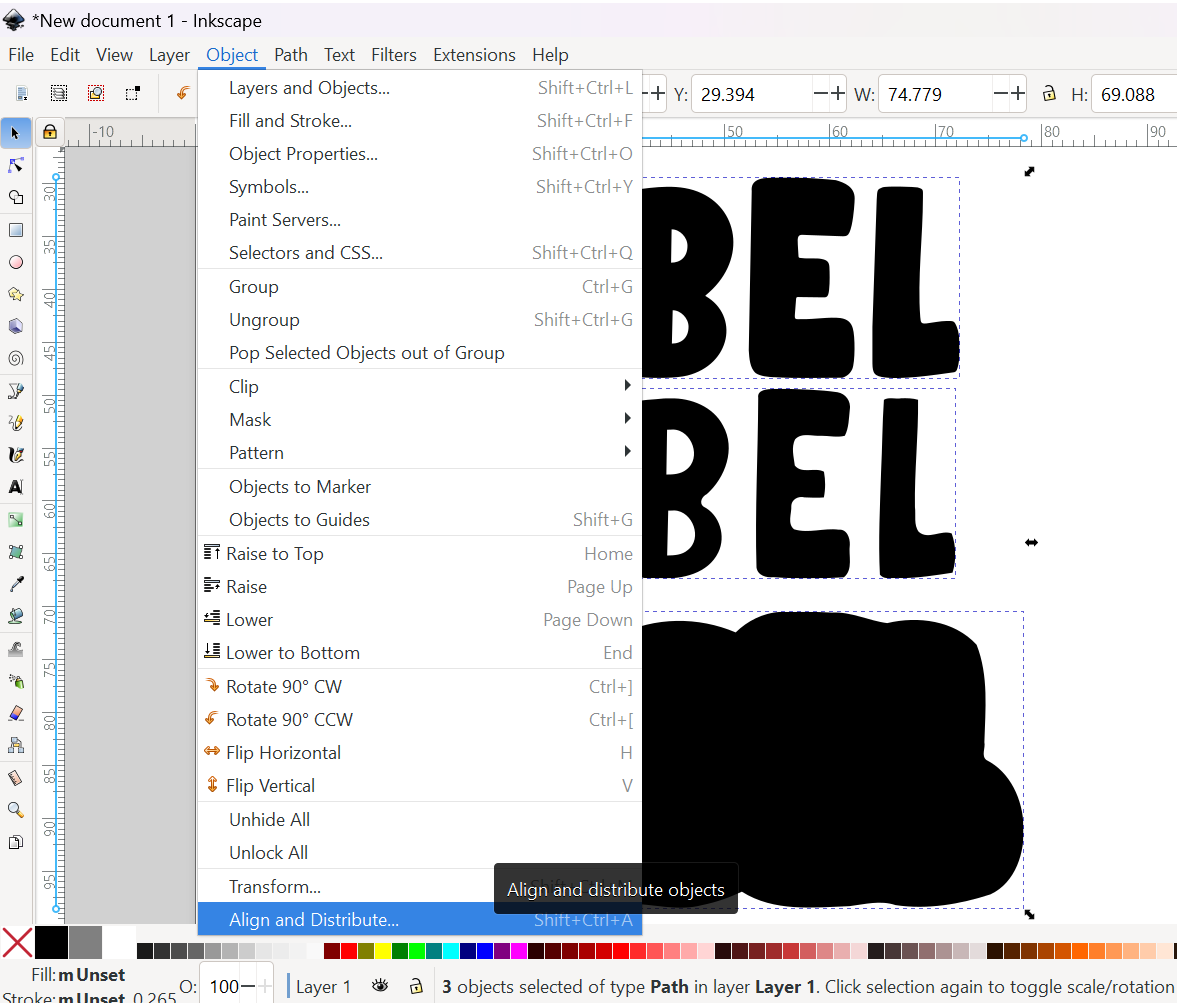
Go to your "Object" menu and select "Align and Distribute," or open with keyboard shortcut SHIFT + CTRL + A (Windows) or SHIFT + CMD + A (Mac).
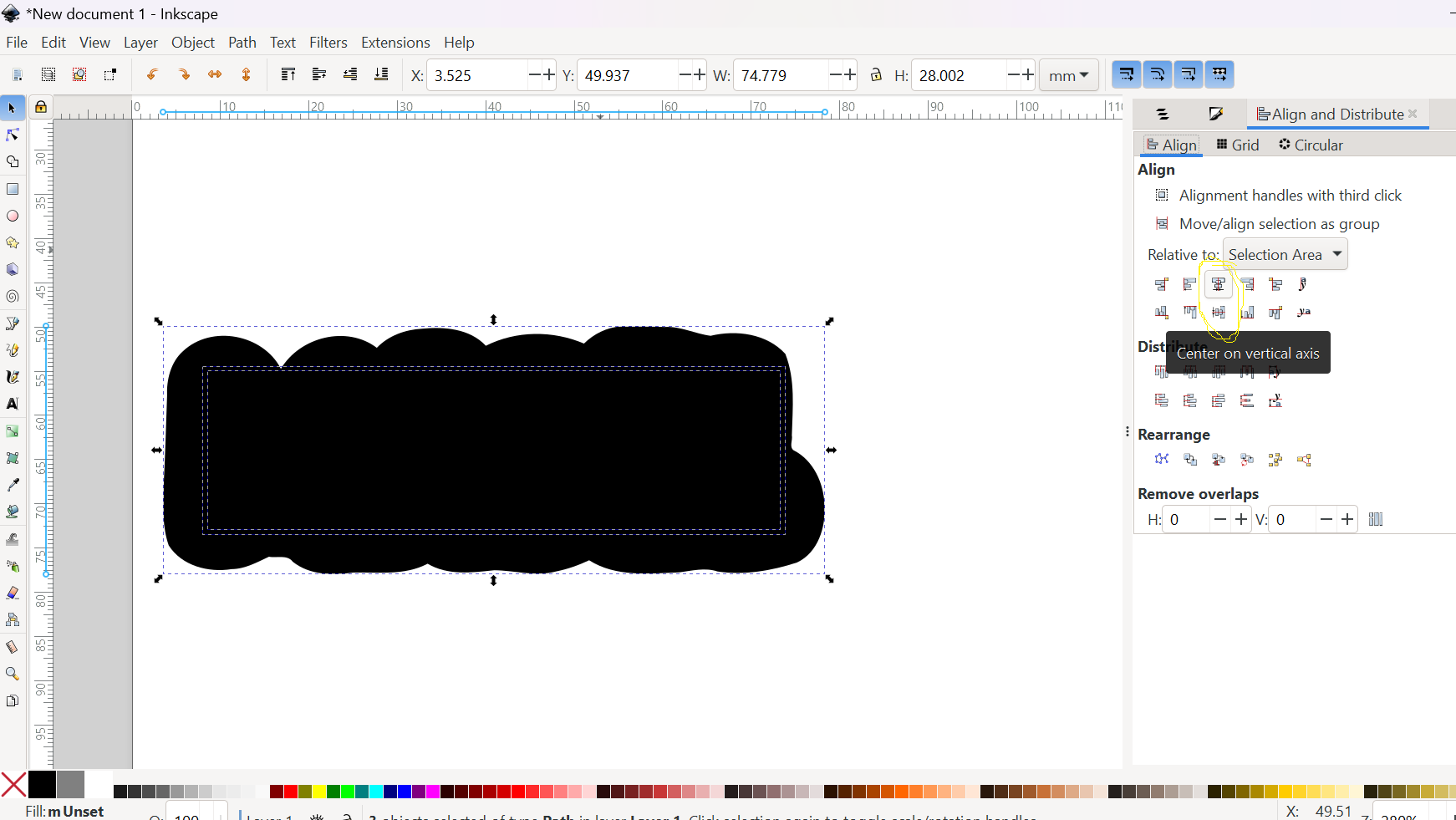
Align by vertical and horizontal centers. These are the two middle icons circled here. (Note that we're including the layered text when aligning these to be sure that it will cover the inset scoring lines once layered, even though it won't remain in this position on your final SVG file.)
-
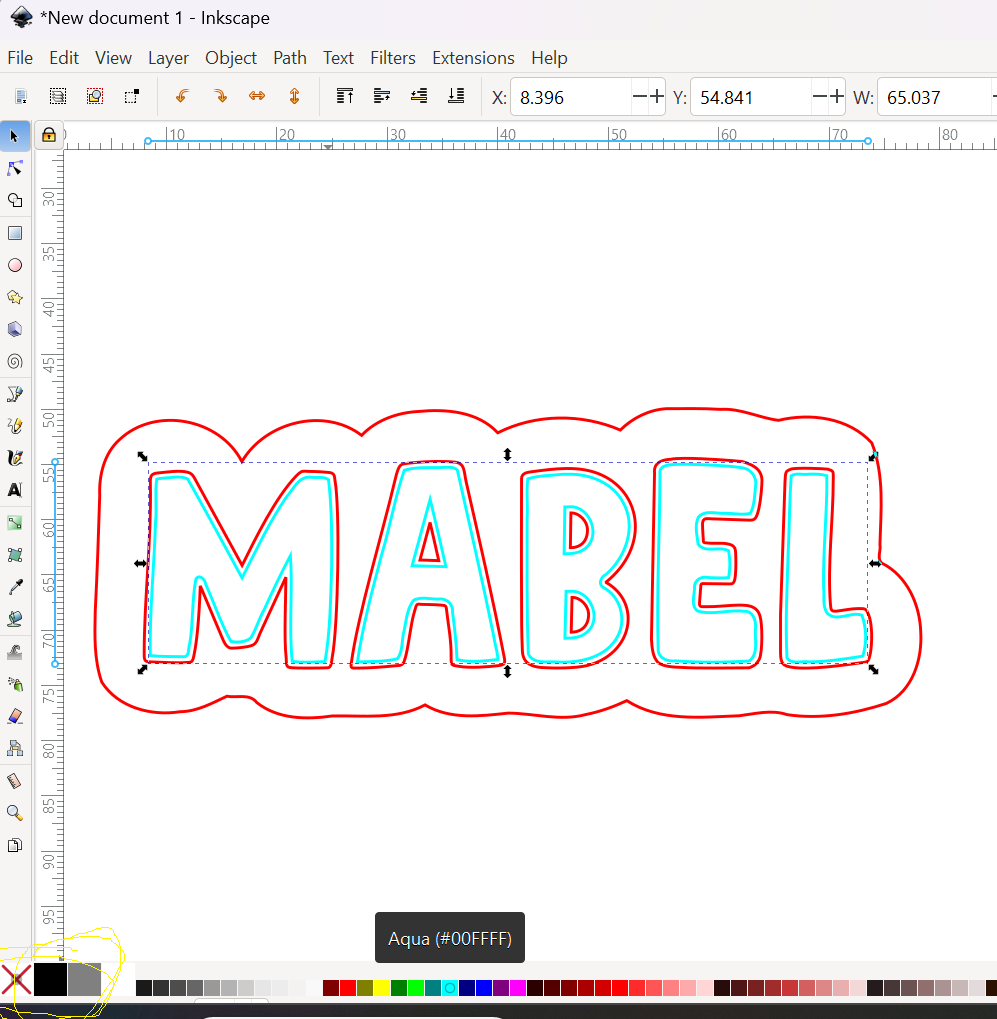
Use the "Fill and Stroke" menu bar at the bottom of the screen to assign your desired appearance to each element. I use a blue stroke for scoring (the inset name) and a red stroke for cutting (the backer & your layered text) but you can use whatever colors work best for you. By assigning a different color to each group of items, your laser will know they need to be two different functions or settings.
How to use the fill and stroke menu: Selecting with a left click will change the fill and right click will change the stroke. For this project, go ahead and select all items, click on the "X" to remove the fill, and then use right click to select a stroke color. Then, change just the inset line to a different stroke color.From here, we are going to add the hole for hardware. Use the ellipse tool to add a small circle to your artboard.
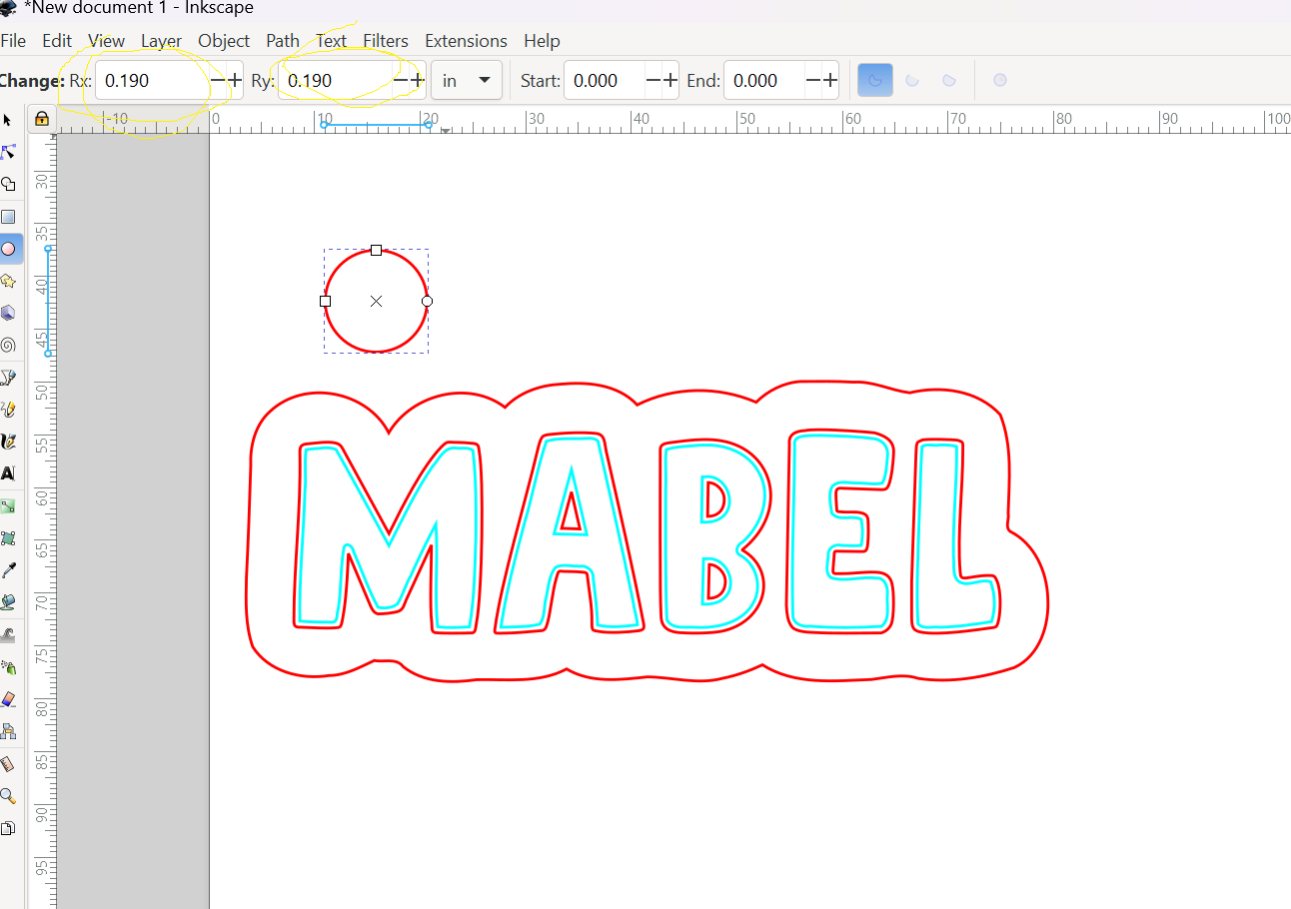
Click on the circle and then adjust the dimensions at the top of your screen to 0.19 inches.
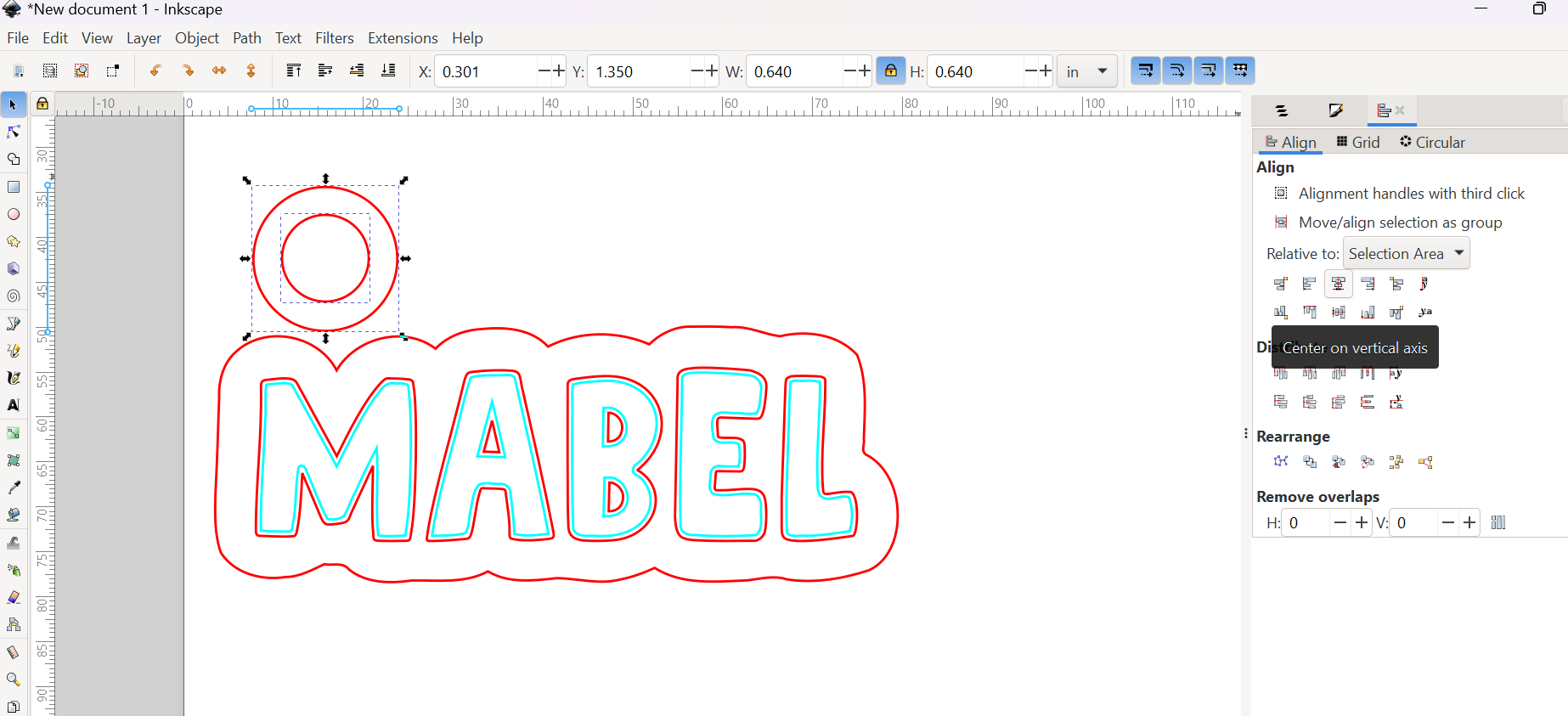
Add a second circle, using dimensions 0.315 inches.
Use your "Align and Distribute" tools to align the centers.
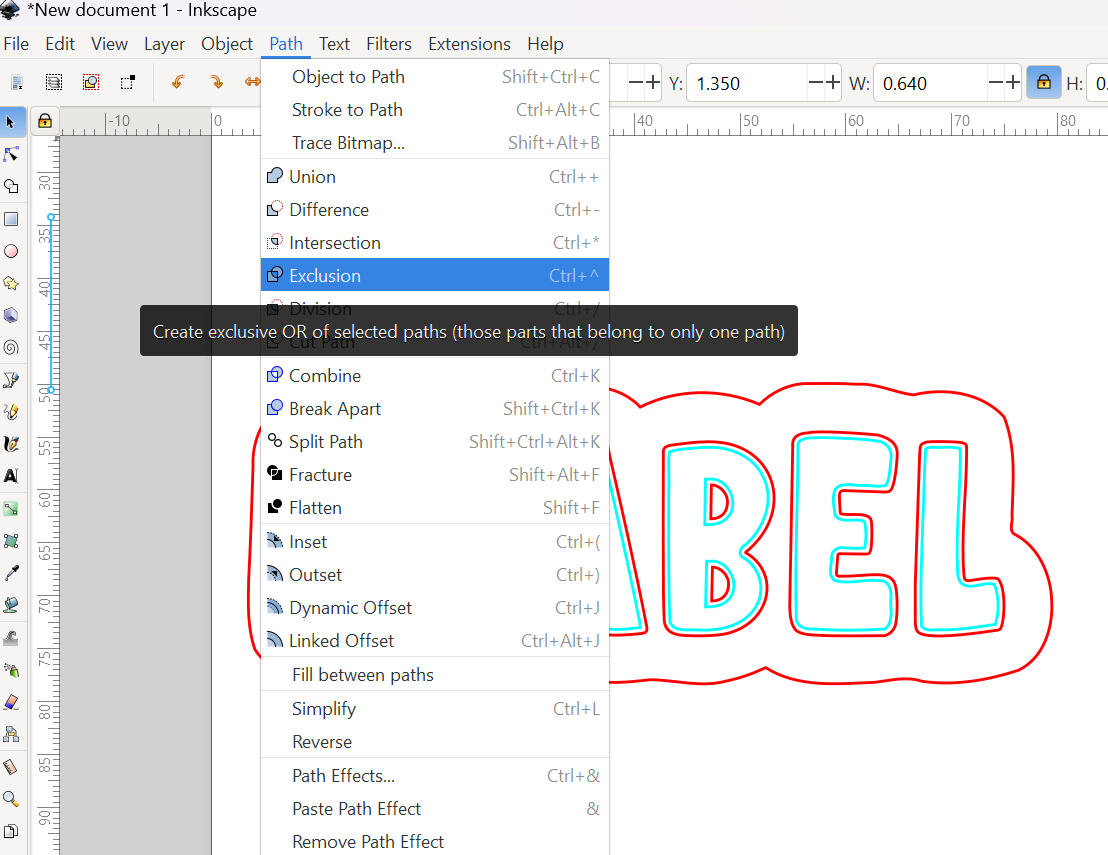
Select both circles and then go to the "Path" menu and select "Exclusion." You can also use keyboard shortcut CTRL + ^ (Windows) or CMD + ^ (Mac).
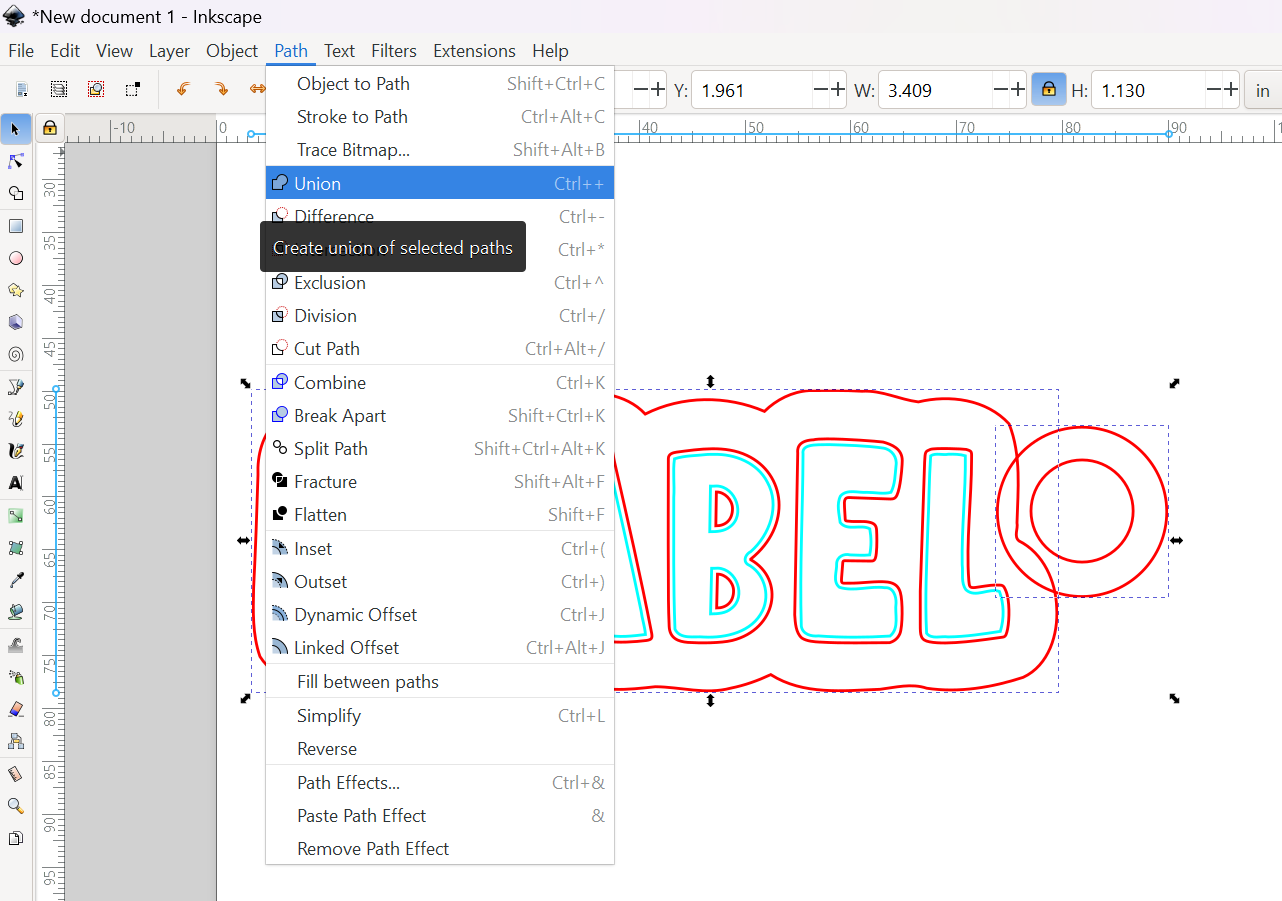
Line up your circles with where you want the hardware to go on your contour backer. Make sure the inside circle is not cut off by the contour cut line you have created. The full inner circle should be on the outside of the contour cut line.
Once you are satisfied with the placement, select the circles and the outline and then select your "Path" menu and choose "Union."
Since you won't be cutting the text on top of the backer, you can move it off to the side.
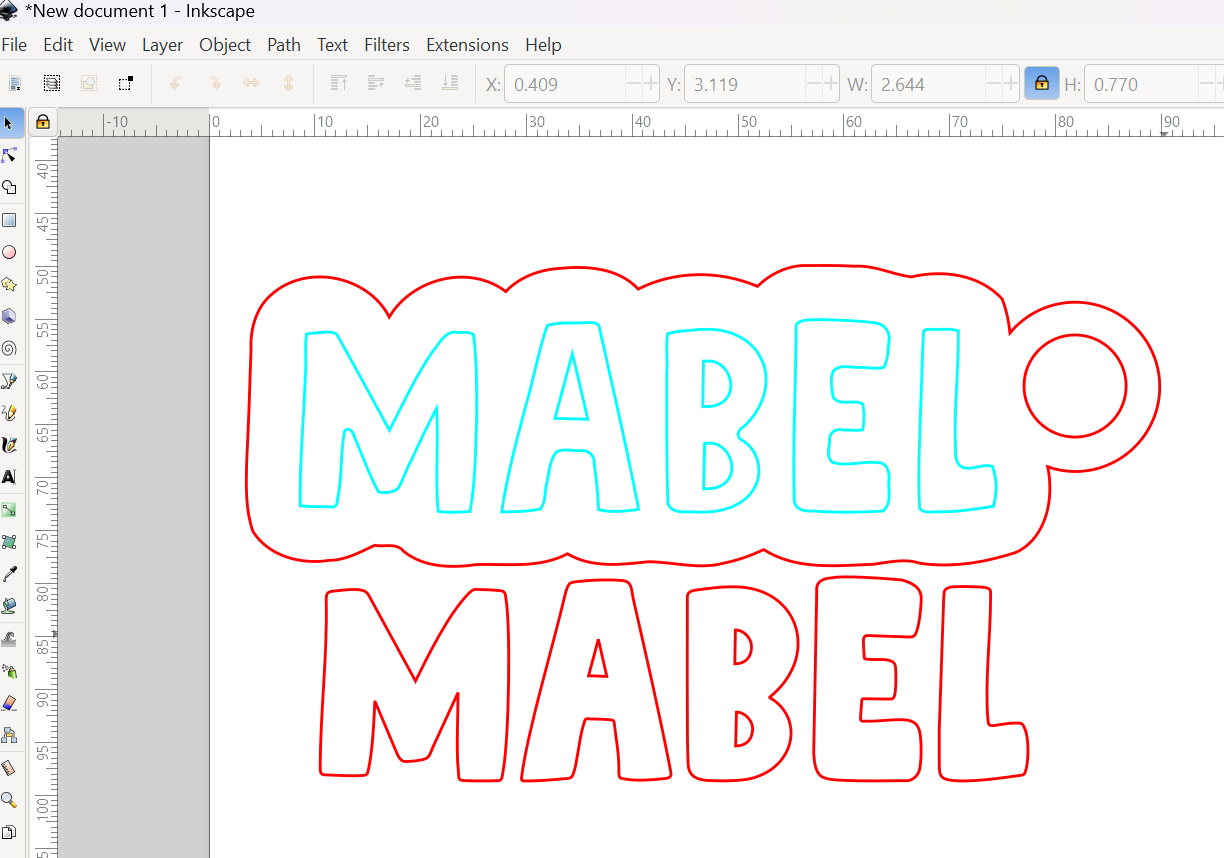
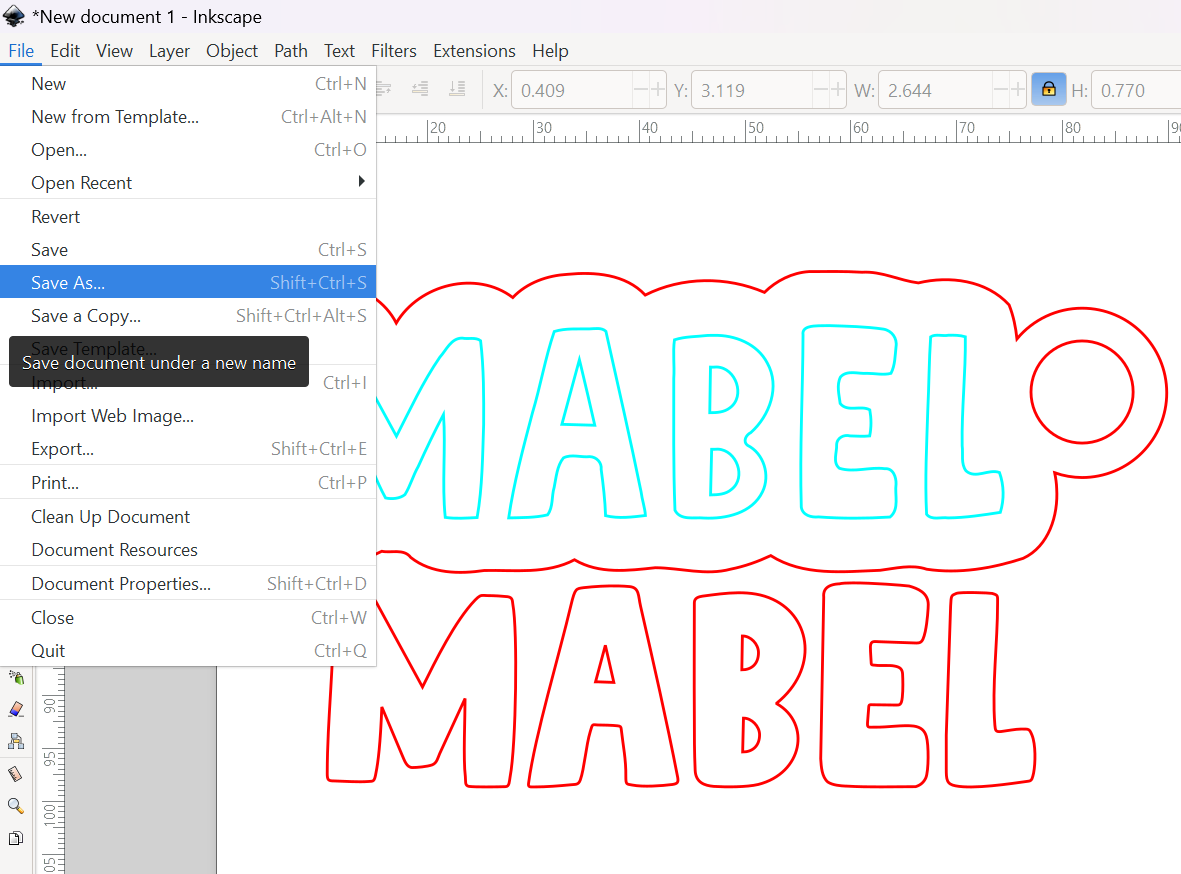
Go to "File" and select "Save As," then save as SVG file.
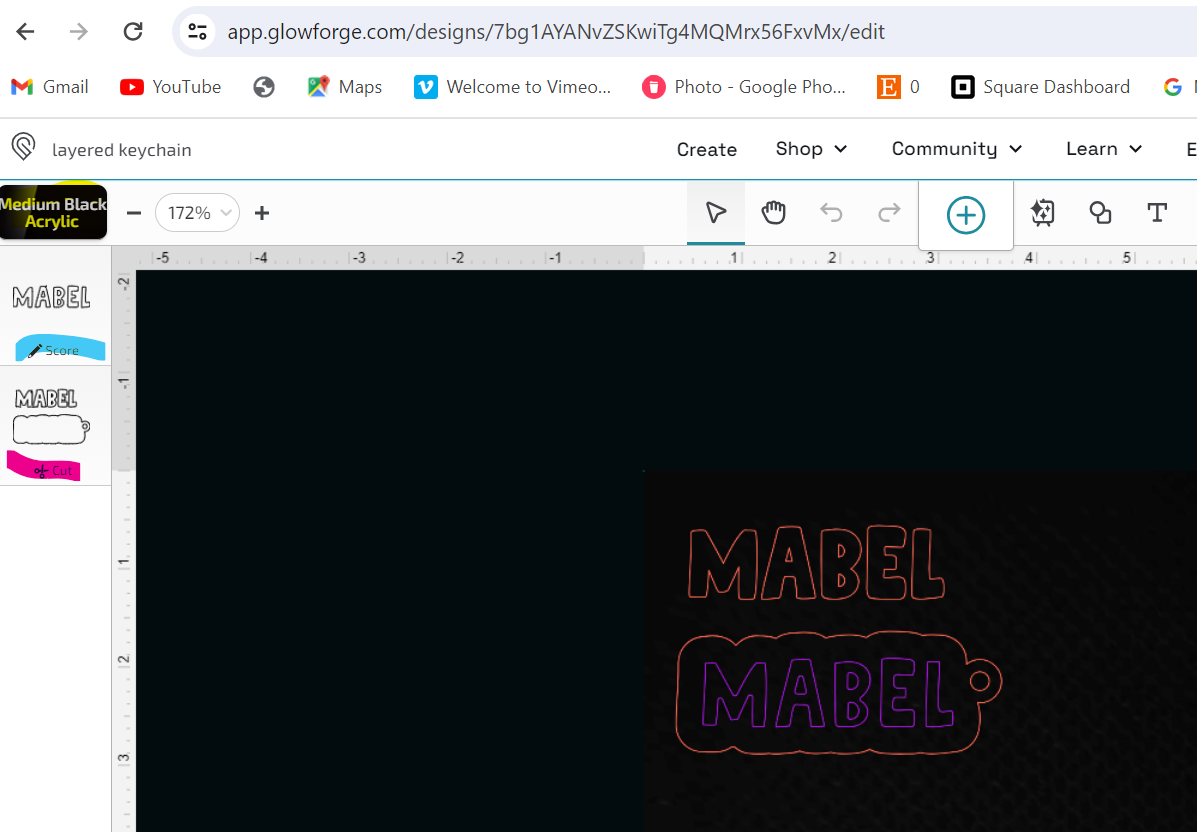
Upload in your Glowforge portal (or whatever program you use to send to your laser if using a different one!)
-
Assign your functions based on the different groups. The inset text will be scored and the rest will be cut.
Run your print. If you are using double sided adhesive, only apply it to the back of the material you are cutting your letters from.
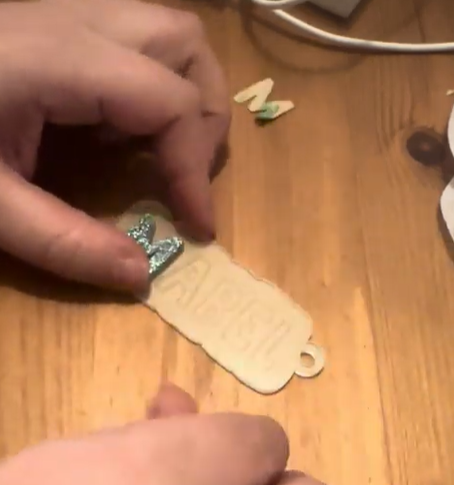
Assemble by placing your letters over top of the scored placement lines.
-
Add your keychain thingie and your split ring.
Ta da! You are done! I'd love to see pics if you try this yourself. You can tag me @samanthasdoodles on all social media platforms.